
WEBSITE 2 FACTOR AUTHENTICATION SETUP
INTRO
To improve the security of your account, World of Workers will be enabling 2-Factor Authentication (2FA).
What is Two-Factor Authentication (2FA)?
Two-factor authentication (2FA) is a security process that adds an extra layer of protection to your online accounts or systems. When you enable 2FA on an account, you’ll be asked to enter your password, as usual. But to complete the login, you’ll also need to provide the one-time code generated by your phone or device. This combination of factors makes it much harder for hackers to breach your account, even if they manage to obtain your password.
How Does 2FA Work?
As the name 2FA suggests, you will need to sign into your account using your password AND a second verification step to complete your login. The second step will require an app on your phone (or another device) from which you can obtain a 6-digit code called a One-Time Password (OTP). The OTP is call this because it expires, either after each use (HOTP) or after 30 seconds (TOTP) depending on how you would like to set it up and which authenticator app you are using.
Set up is simple and easy to get the hang of. Your phone or tablet can know the code after it has been set up once (often, by just scanning a bar-code off the screen). We have provided instructions below of how to get started.
When do I need to do this by?
When you log into your account you will be prompted to set 2FA up. We recommend you do this immediately; however you will have a grace period of 7 days to set this up. If you do not set this up, your account risks being locked.
We will be deploying this system from 31/07/2023
What Do I Need to Set 2FA Up?
This depends on your type of phone and your preferences, but you will need to download an authenticator app. You can look for these apps in the Google Play Store or Apple App Store, depending on your phone type.
Google Authenticator, Authy and Duo Mobile are apps that are commonly used for this purpose, however, as long as the app supports 6-digit One-Time Password (OTPs), you should be ready to get everything set up!
What if I Don’t Have a Phone?
If you do not have a phone or a phone compatible with these authenticator apps, you can access app on a tablet.
Alternatively, you can get an add-on for your web browser.
For example, if you use Google Chrome, here is a list of potential extensions you can make use of: https://chrome.google.com/webstore/search/authenticator
I Have the Authenticator App, What Now?
You will now need to set up 2FA for your World of Workers login on your authenticator app.
When you next log into your account, log in as usual.
You will be redirected to a page where you can set up your preferred 2FA settings. It will look something like this:
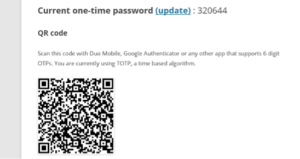
When you see this page, open your authenticator app on the device you have chosen.
For device specific instructions for adding an account, we have included links to the official support pages of the most commonly used authenticator apps below:
If you use Authy, this support page may be useful:
If you use Google Authenticator, this support page may be useful:
If you use Duo Mobile, this support page may be useful:
2FA General Set Up
If you are familiar with these kinds of apps, we have provided general instructions below to link your World Of Workers account to your authenticator app. Device specific instructions can be found in the section above for some of the common authenticator apps.
In the app, you will need to find the option to add an account. This option can typically be found in the menu of your app or indicated by a + symbol on your screen depending on your device and app.
Using your authenticator, there will be an option to scan the QR code, and/or an option to manually enter the current one-time password from your World of Workers account into your phone (or alternative device). Use the options available to you in your app to either scan the QR code or enter the password from your World of Workers account.
This will link your device to your account.
You may be asked to name this account in your app (if you desire). If you have other accounts set up in your authenticator, this will help to distinguish which account you are logging into.
Your 2FA set up is complete.
After 2FA set up is complete, you will be redirected to your account. If this does not happen automatically, please log out and log back in.
Now That 2FA is Set Up, How Does This Change the Way I Log into My Account?
The next time you log into your account, you will login with your username and password, as usual. After a successful login, you will come to a secondary page asking for a One Time Password. It should look something like this:
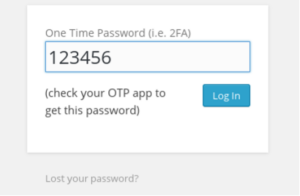
As per the instructions, you should obtain the 6-digit code from your authenticator app and input the password into your World of Workers login. If you are using a code that expires every 30 seconds, be sure to input the code within the time limit.
If you have input the code wrongly or too late, you may see something similar to this error page:
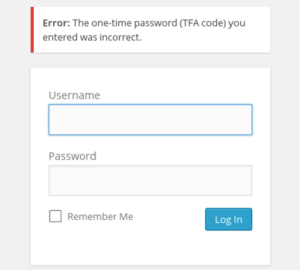
If this is the case, you will have to start the two-factor process from the beginning.
What if I Have Issues Logging into My Account?
Please email us at: support@worldofworkers.com